Sharp prints start with the right file. The resolution you actually need, which formats survive upload, how small text can go on DTF, DTG and embroidery, and why semi-transparent edges are the single most common cause of a disappointing print.
In this guide · 9
Nearly every disappointing print traces back to the file, not the press. The good news: making artwork print-ready takes five minutes once you know what to check. Here is the short version we wish every file arrived with, plus the numbers for each decoration method, because what works beautifully on a direct-to-garment print can fall apart in thread.
Start from the right size
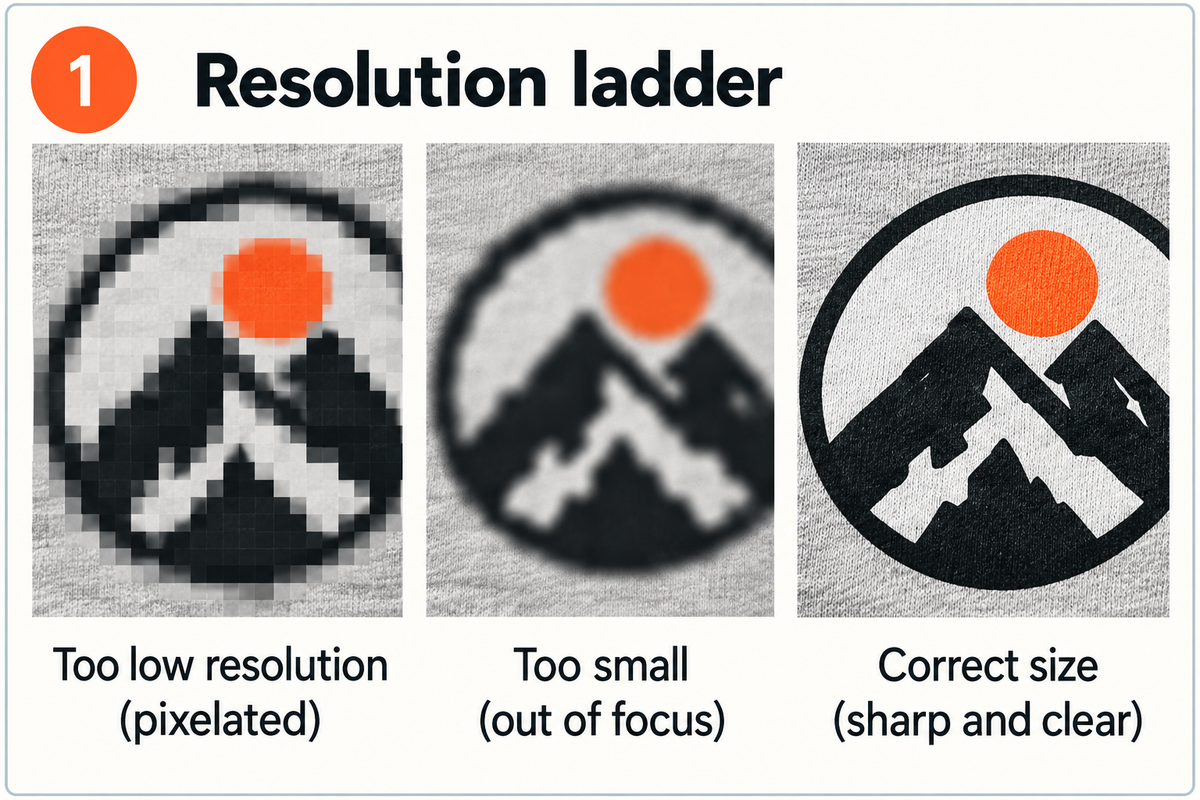
Print needs far more pixels than a screen. Aim for 300 DPI at the print area's physical size: for a full 38 x 45 cm chest print that is roughly 4488 x 5315 px. Smaller placements need proportionally less, so a 12 x 12 cm left-chest logo is sharp from about 1420 x 1420 px. Every print area in the customise editor shows its physical dimensions, and the canvas warns you before checkout if a file would print soft. Don't ignore that warning. Upscaling cannot invent detail that was never captured, and the warning is advisory, so nothing stops you ordering through it.
There are hard ceilings at the other end too. Uploads are capped at 50 MB, 12,000 px on the longest side, and 60 megapixels in total. If a file is rejected on upload, it is almost always one of those three, and the fix is to export at the size you are actually printing rather than at whatever your canvas happened to be.
Choose the right format
PNG is the workhorse: lossless, supports transparency, and every tool exports it. Avoid JPG for artwork with text or hard edges, because its compression leaves faint blocky halos that are invisible on screen and obvious on a garment. WebP is fine. Keep files in RGB and let our pipeline handle the conversion to each press's colour space; a CMYK file will shift when we convert it.
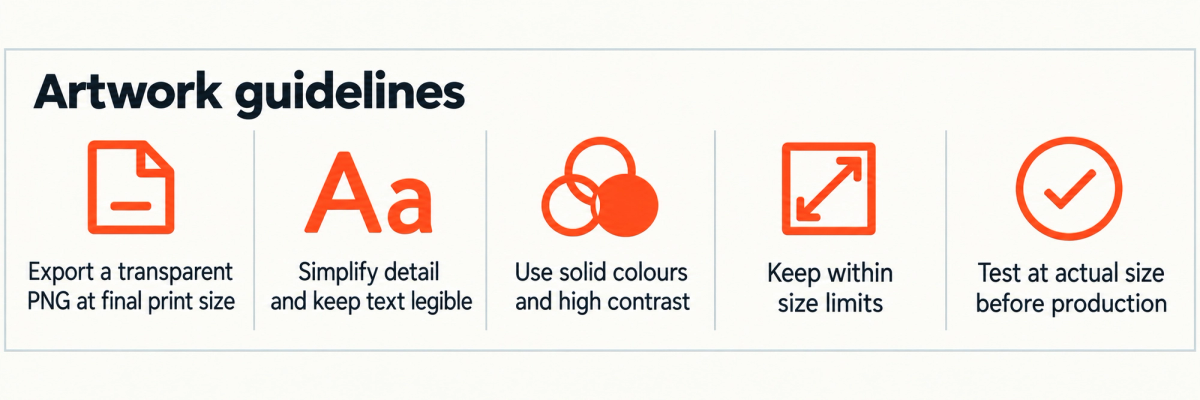
Vector files need one caveat. You can upload SVG, and PDF works in the customise editor, but both are converted to pixels the moment they arrive, so the scalability does not survive the trip. If your logo is vector, export it yourself as a transparent PNG at the physical size you intend to print, with live text converted to outlines first. That way you choose the resolution instead of inheriting ours. Multi-page PDFs lose everything after page one.
How small can text and detail go?
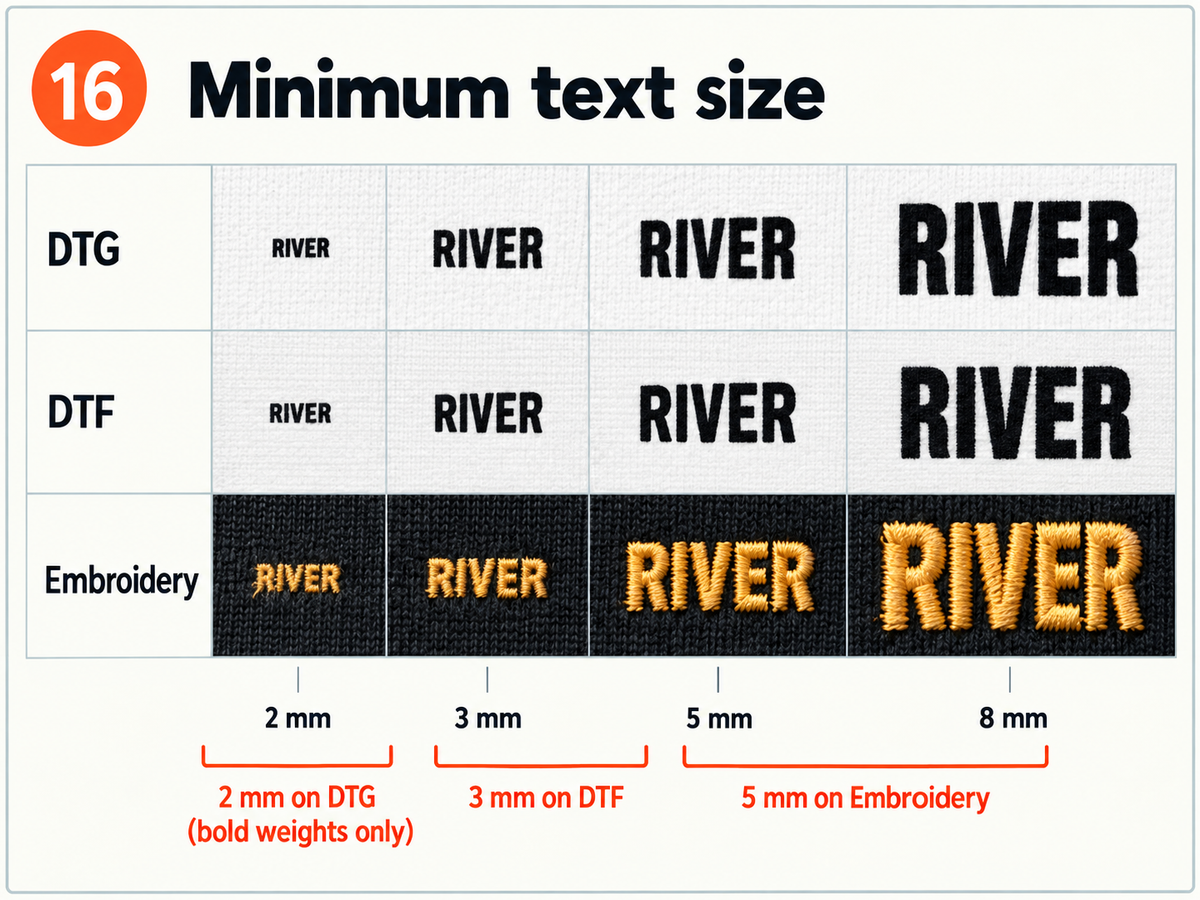
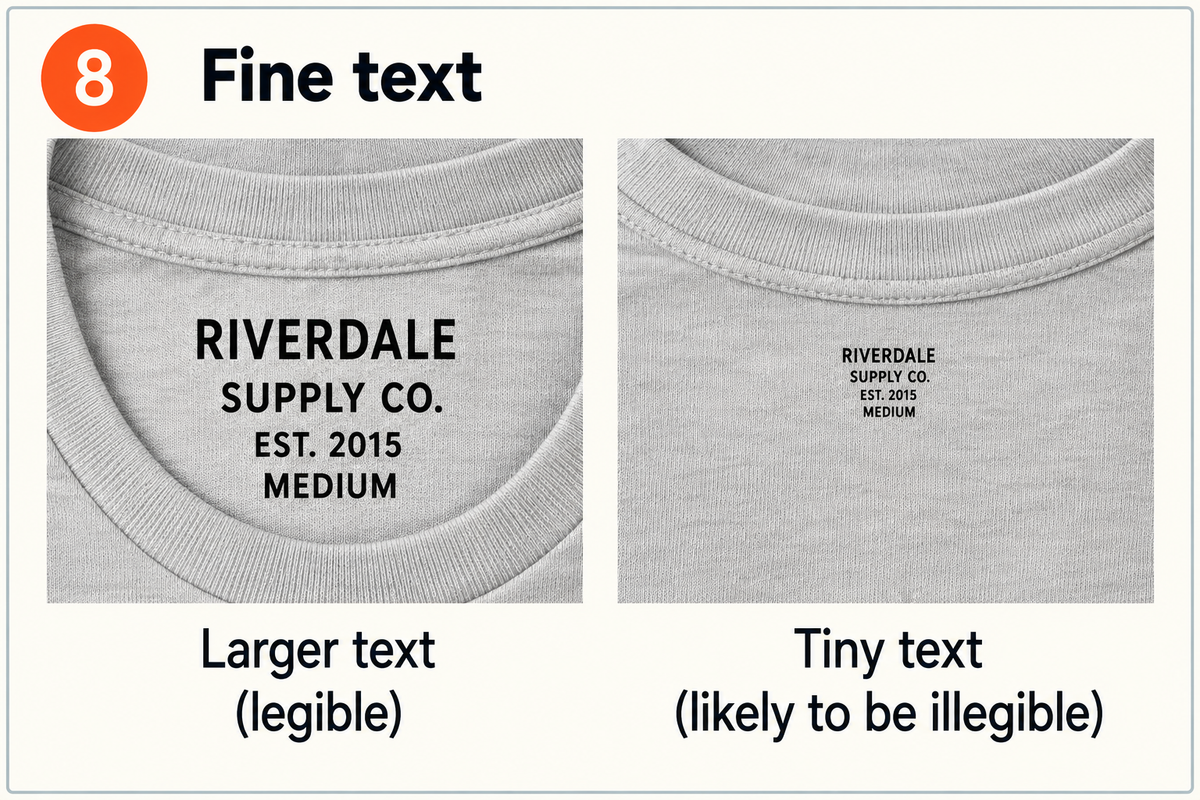
This is the question we get asked most, and the answer genuinely differs by method. Measure letter height (the height of a capital letter, not the font's point size) and stroke weight at the final printed size. Rough floors below which things start to fail:
- DTG: the finest of the three. Letters hold down to about 2 mm (roughly 6 pt) in a bold weight, and are comfortable from 4 mm. Keep strokes at 0.5 mm or thicker. Small text is noticeably safer on light garments, because dark garments need a white underbase beneath the colour and tiny letterforms are where that underbase is most likely to show as a faint ghost.
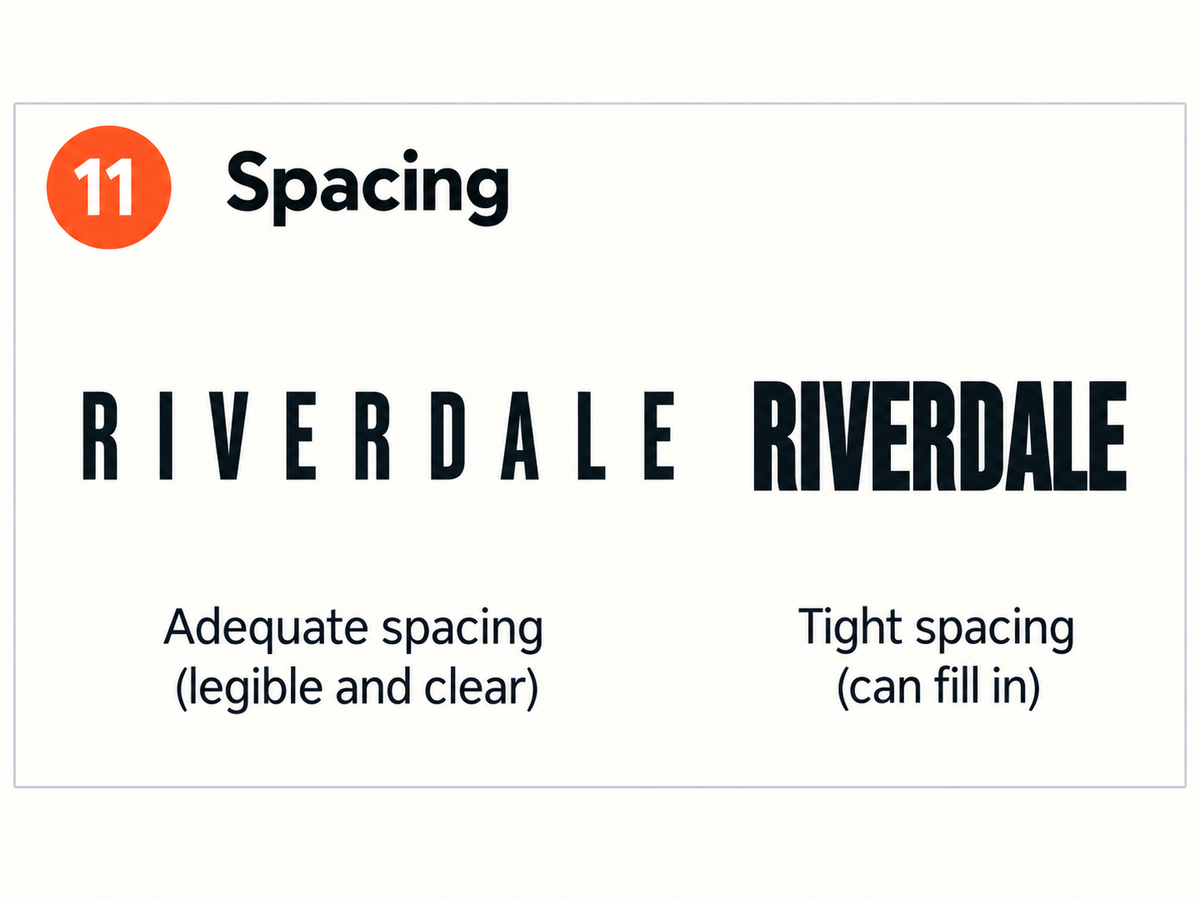
- DTF: letters from about 3 mm (roughly 8 pt), comfortable from 4 to 5 mm. Minimum stroke is 0.6 mm, but give yourself 1 mm if you can. Gaps count as much as marks: leave at least 0.6 mm between elements and inside letter holes, or the gap closes up and an 'e' becomes a blob.
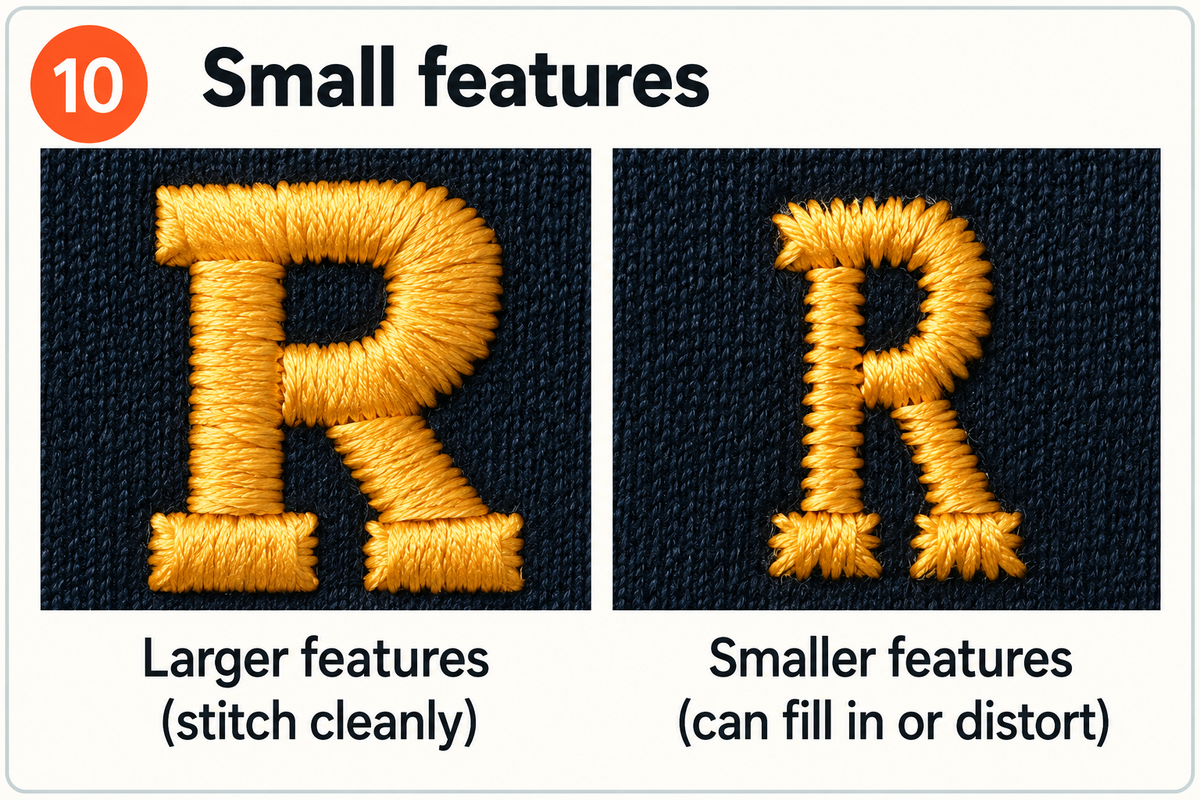
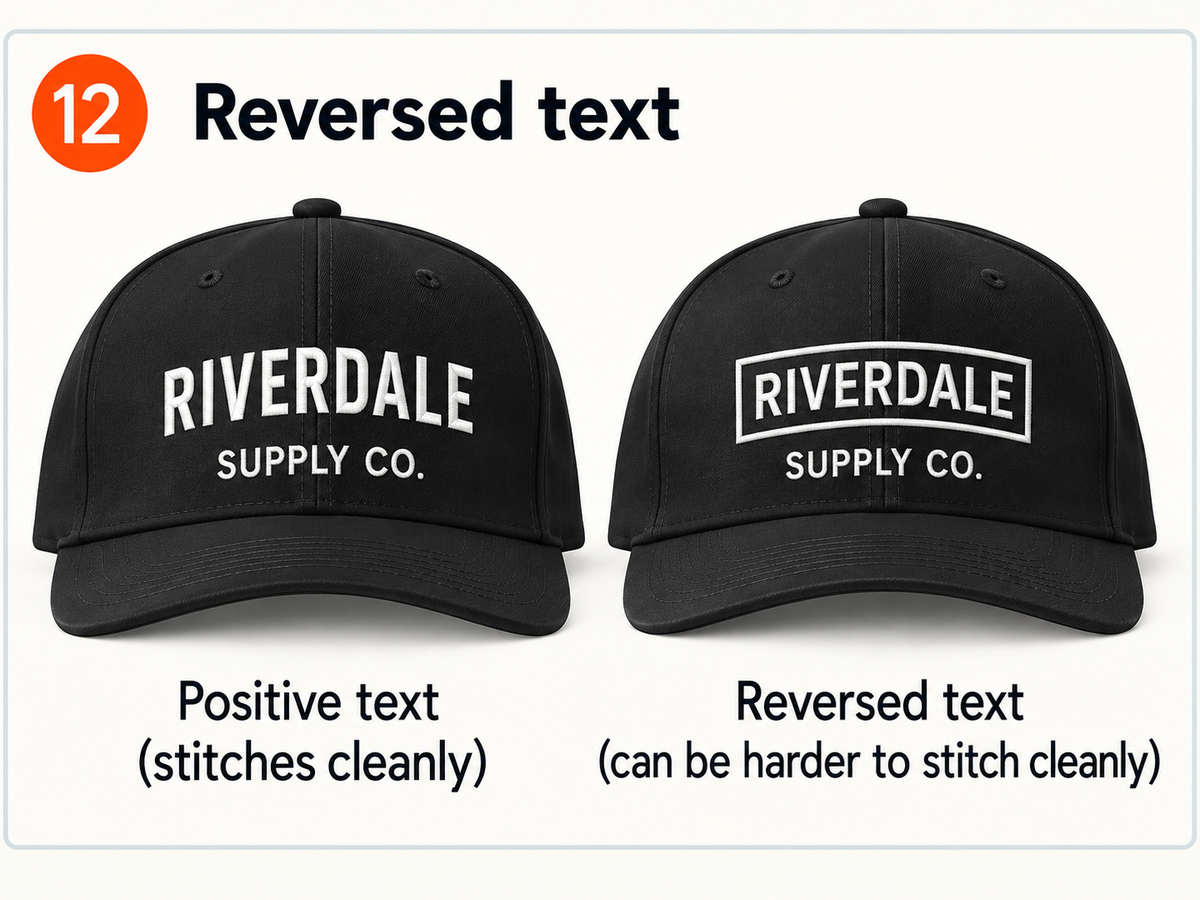
- Embroidery: much coarser. 5 mm is the floor for all-caps lettering and 6 mm for mixed case, with 8 mm the first size that reads effortlessly on a chest. A stitched stroke cannot be narrower than about 1 mm, and any enclosed gap needs 1 mm of clearance or the thread fills it in.
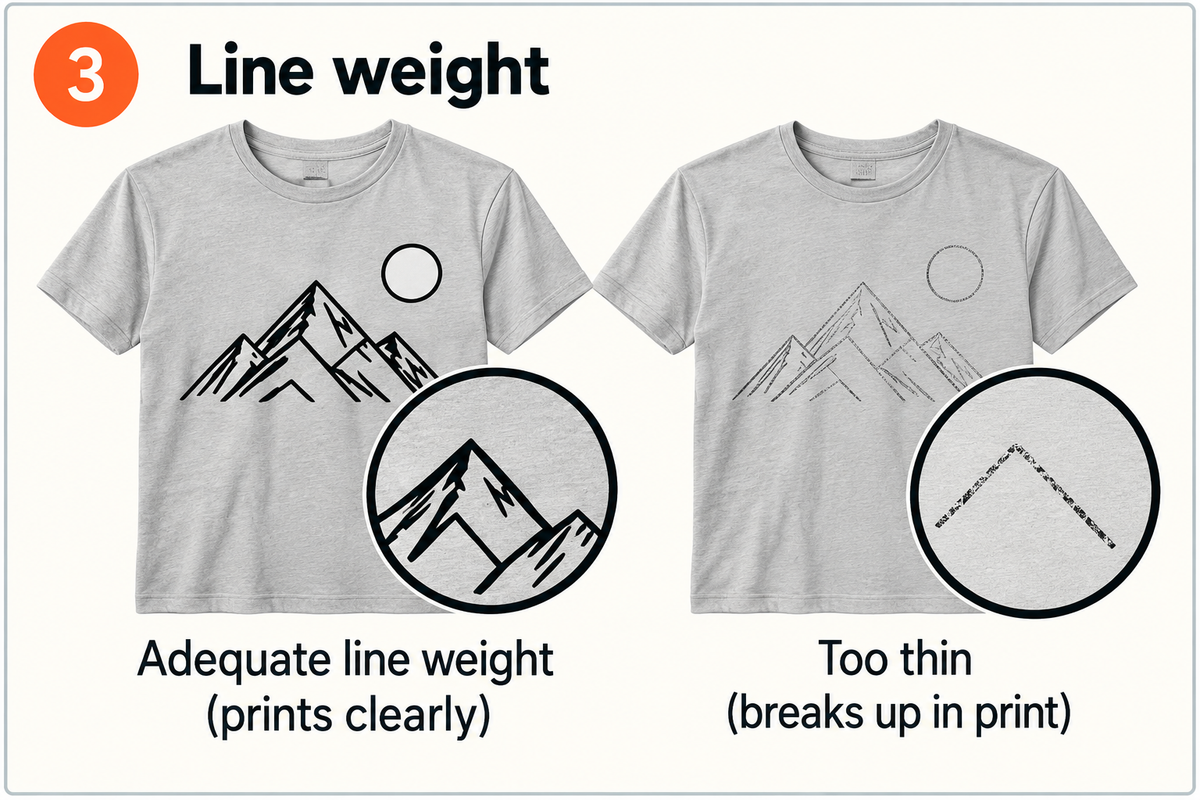
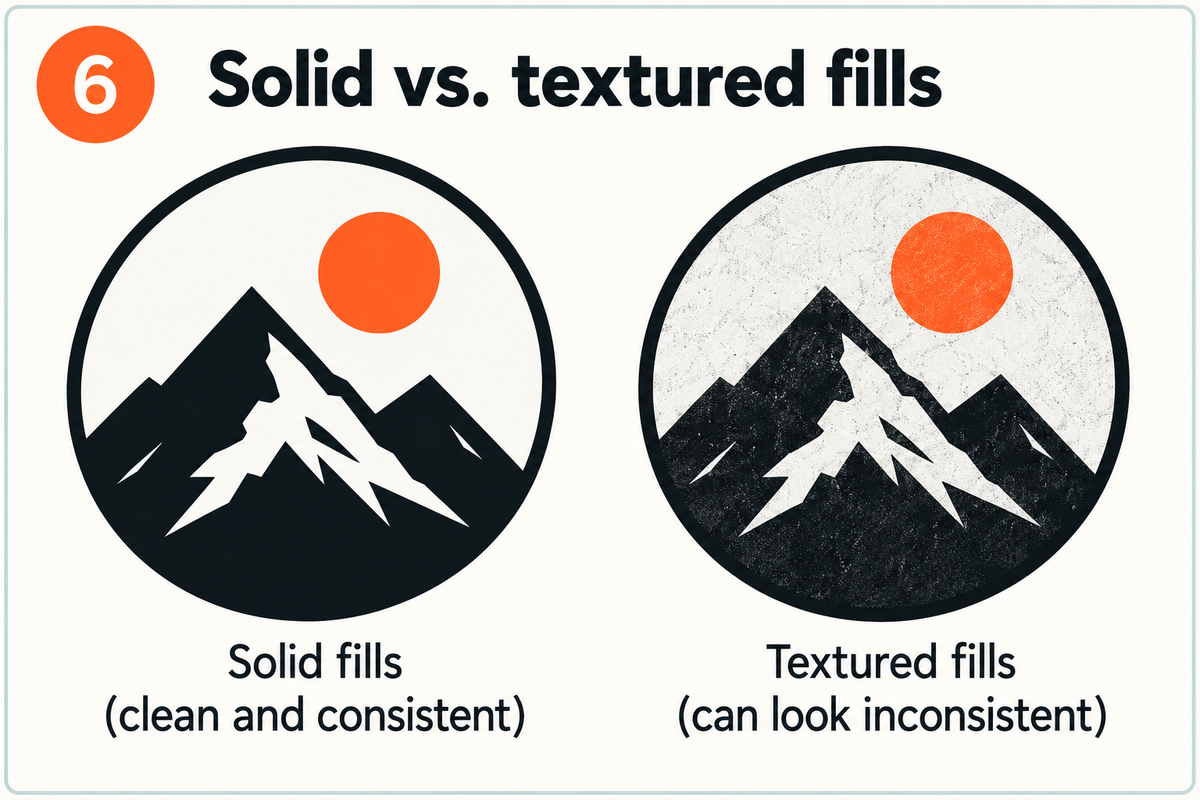
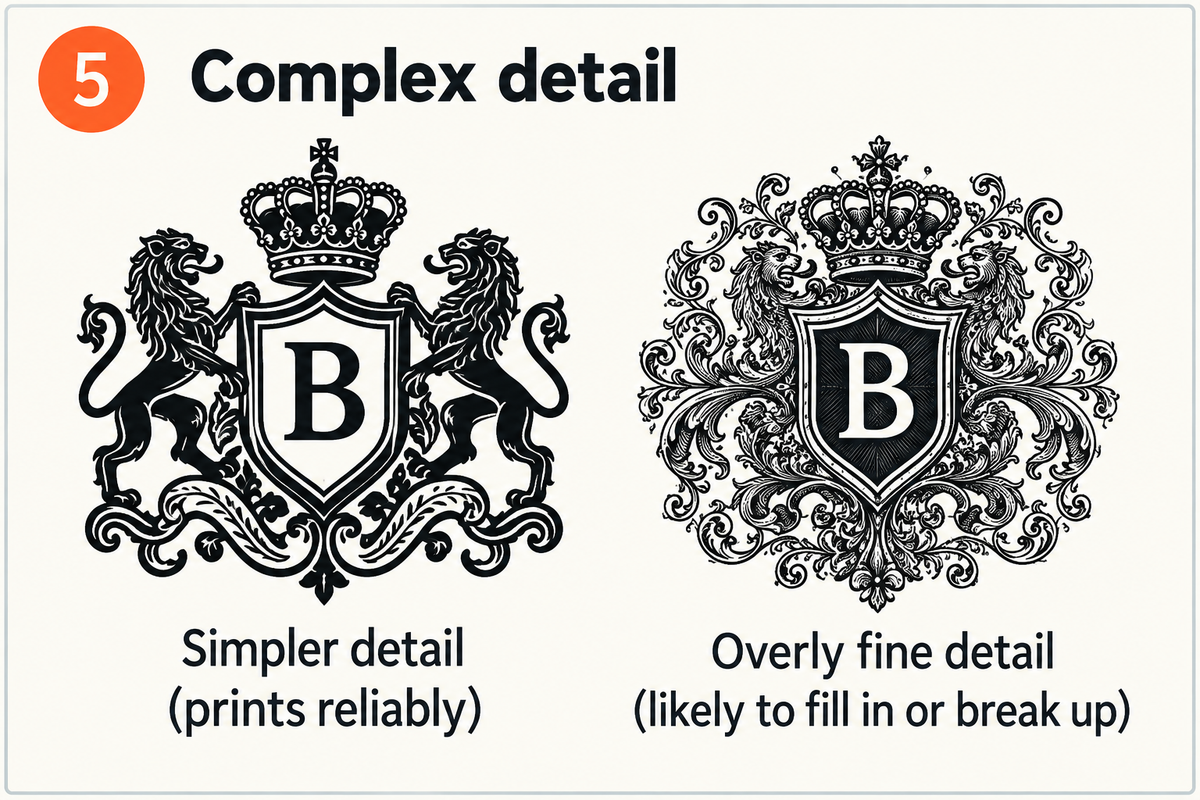
Weight matters more than size. A bold geometric sans at 6 pt will outprint a thin script at 10 pt every time, because the script's hairline connectors are the part that breaks. The same logic kills fine distressing: dust-speckle and hairline crack textures either vanish or print as mud, so use fewer, larger, deliberate distress marks that are still visible at final size.
Transparency: the thing that catches everyone
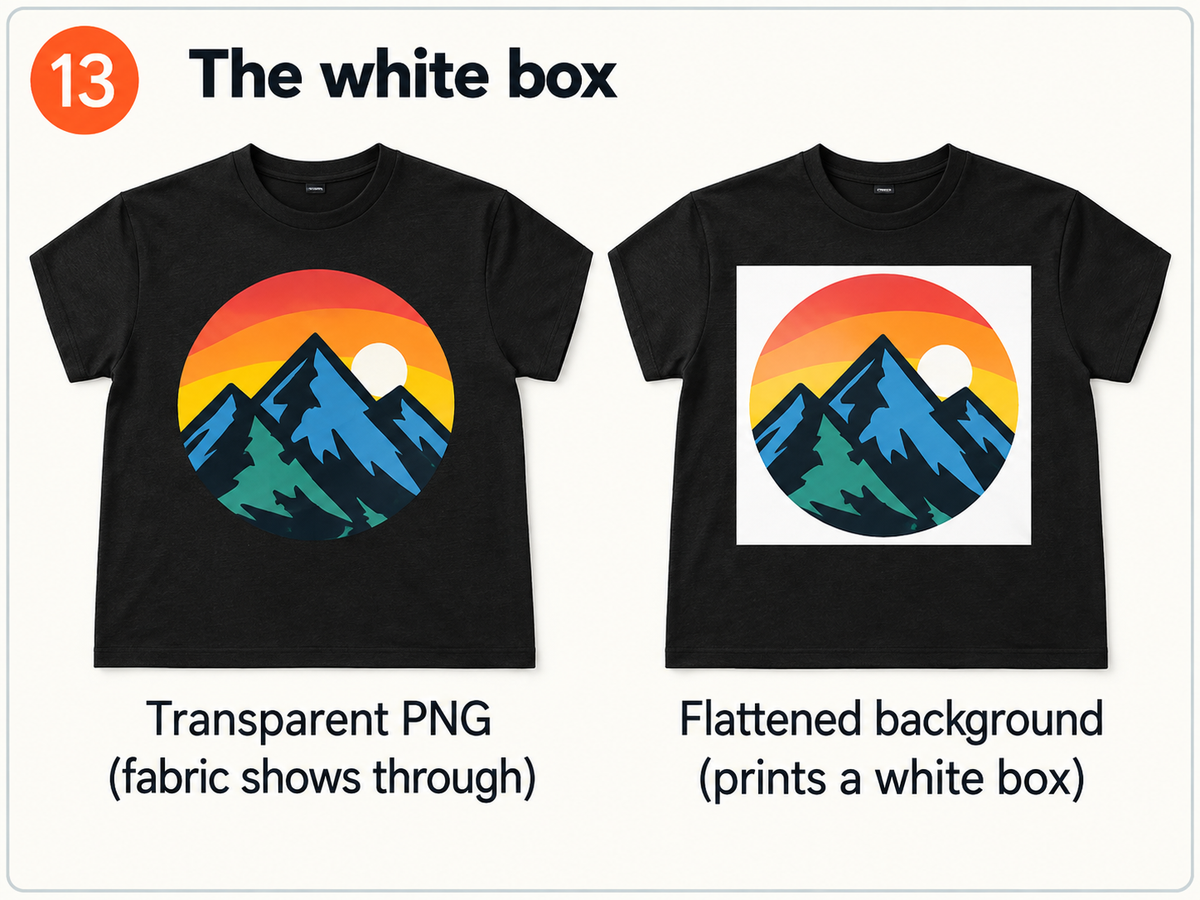
Whatever is in your file gets printed, including a white background you forgot was there. On a white tee it hides. On black it prints as a solid white box around your design. Export with a transparent background, then drop your design onto a dark colour in the customise preview as a quick check. If you can see a rectangle, so will your customer.
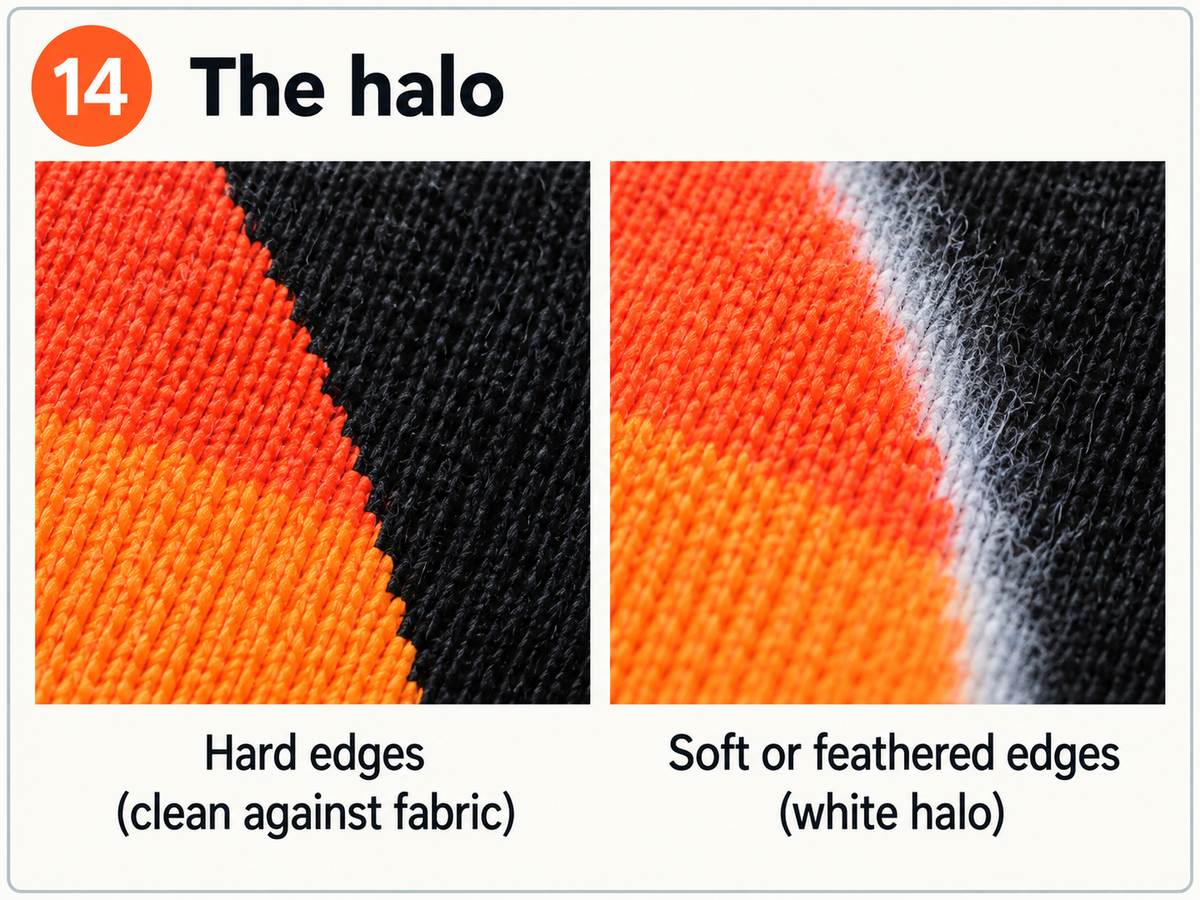
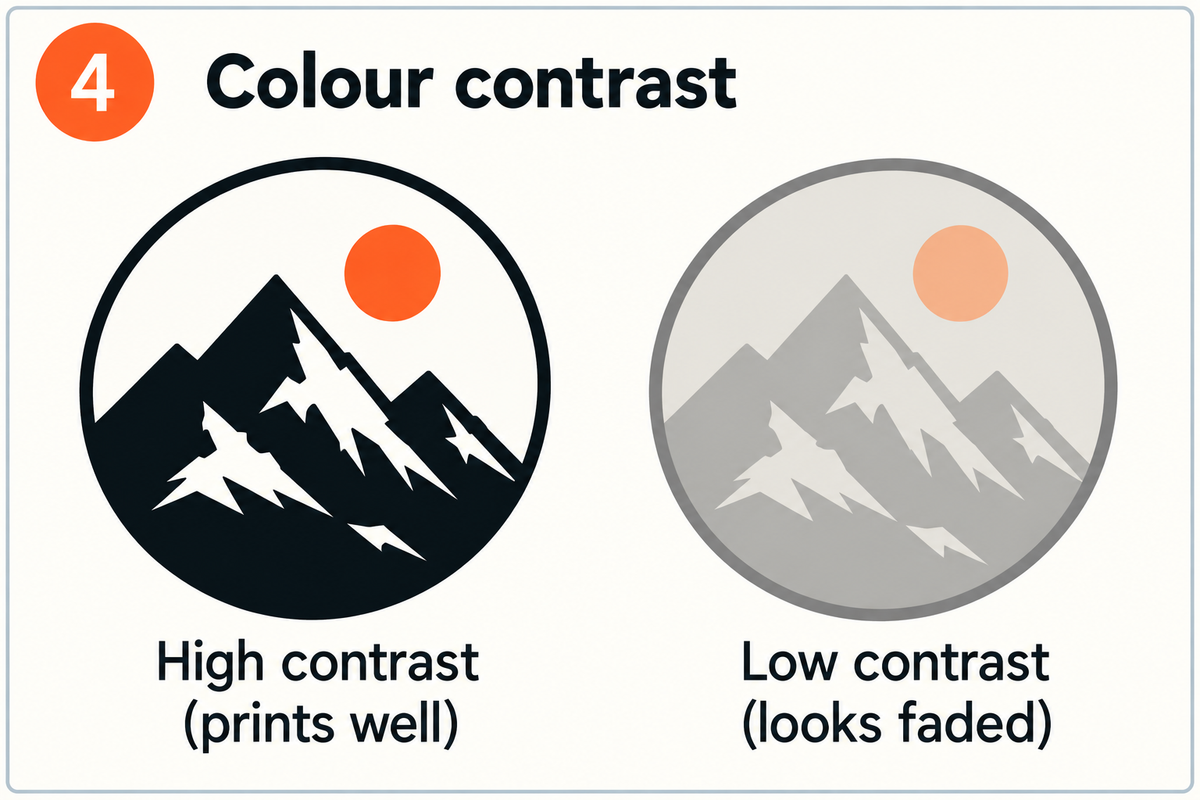
The subtler problem is partial transparency, and it is the single most common cause of a print that looks wrong for no obvious reason. Both DTF and DTG build colour on top of a white underbase on anything but a white garment, and that underbase is laid wherever a pixel is even slightly opaque. A pixel at 30% opacity gets roughly 30% of a white dot: too little white to carry the colour, but more than enough to read as a pale, milky fringe against dark fabric. That is the white halo people describe around their artwork, and it is in the file, not the press.
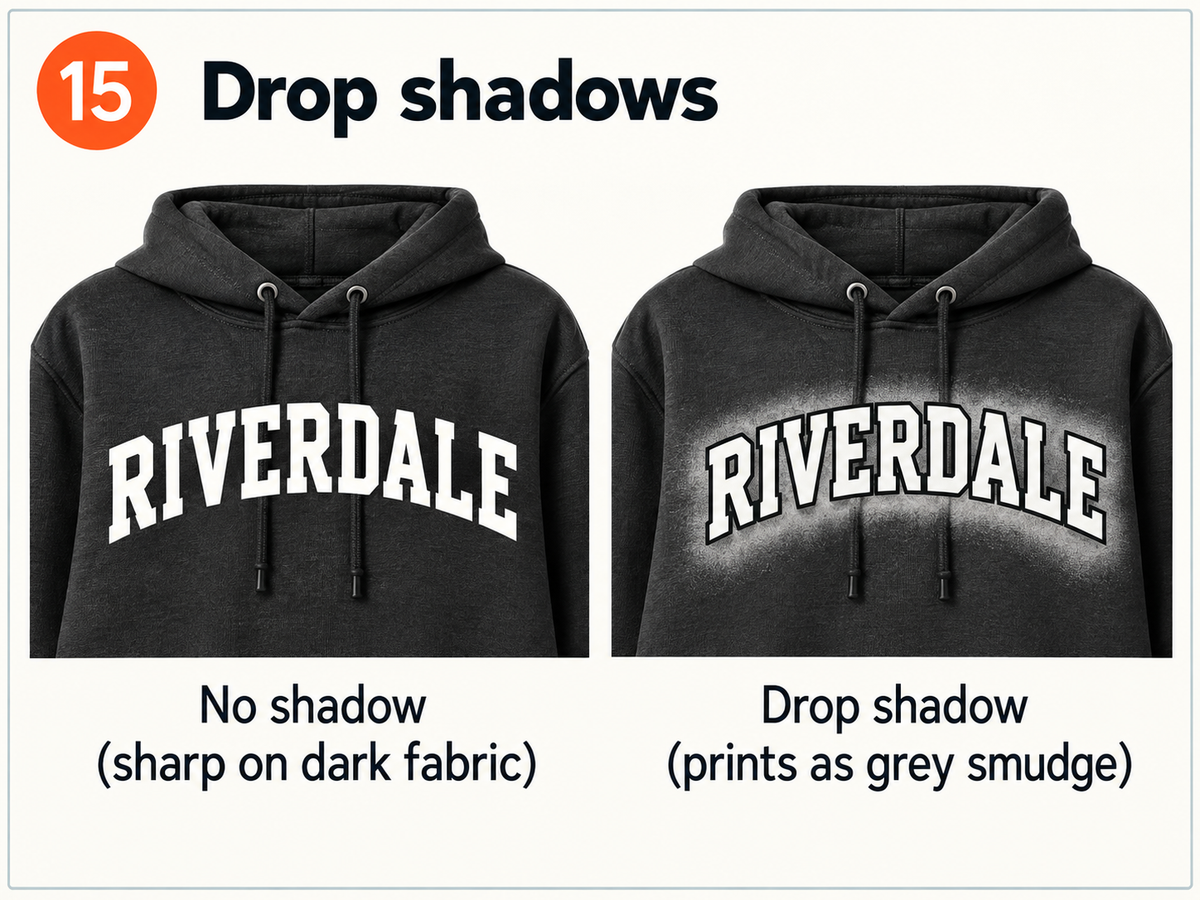
Four things quietly create those pixels: anti-aliased edges, drop shadows and outer glows, soft or feathered brushwork, and background removal with a magic-wand tool that leaves half-erased fringes. The fix is to make every pixel either fully opaque or fully invisible. In Photoshop, apply a Levels adjustment to the alpha channel and pull the black and white points together until the ramp collapses; most background-removal tools now have a one-click equivalent. Our DTF preparation does some of this for you, hardening anything above about 25% opacity to fully solid, but that is a safety net rather than a design tool: it means a soft fade arrives with a hard cliff at the 25% line instead of fading out gracefully. Better to decide where your edges stop than to let the threshold decide for you.
Fades, shadows and glows
A fade to nothing is the one effect that looks perfect on screen and fails on every method. There is no semi-transparent ink: a press can lay a dot or not lay a dot. On DTF there is a second, more physical problem, because the adhesive powder needs ink to stick to, and below roughly 30% coverage there is not enough to hold. Those areas survive the press and then wash off.
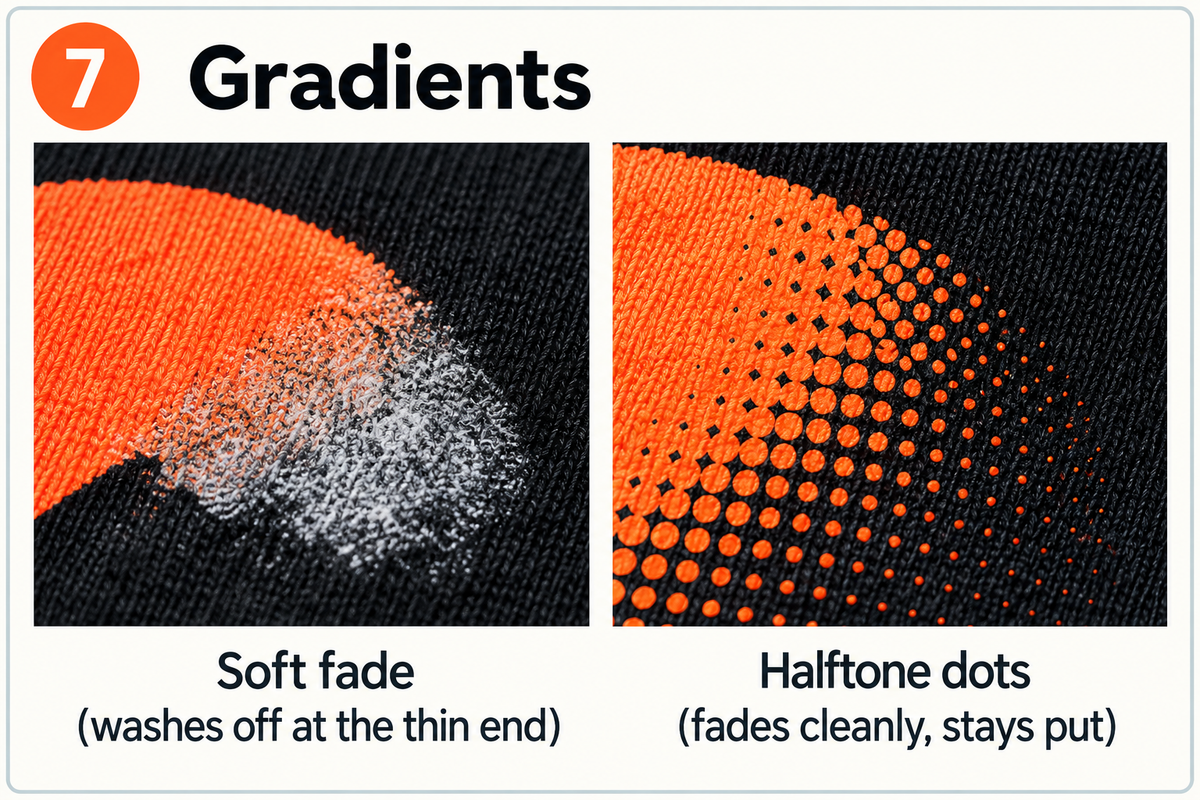
The professional answer is a halftone. Instead of printing a whole area at 20% opacity, print 20% of that area at full opacity, as a field of tiny solid dots that the eye reads as a smooth tone from normal viewing distance. Most design tools will do this with a colour halftone or diffusion-dither filter; stochastic dithering suits smoke and organic texture, round dots suit shadows. If you would rather not go near halftones, the simplest move is to end your gradient on a defined edge well above 30% and let it stop there. Drop shadows on dark garments are best deleted outright: a partly transparent dark shape over black fabric has nowhere to go but grey smudge.
Designing for DTF
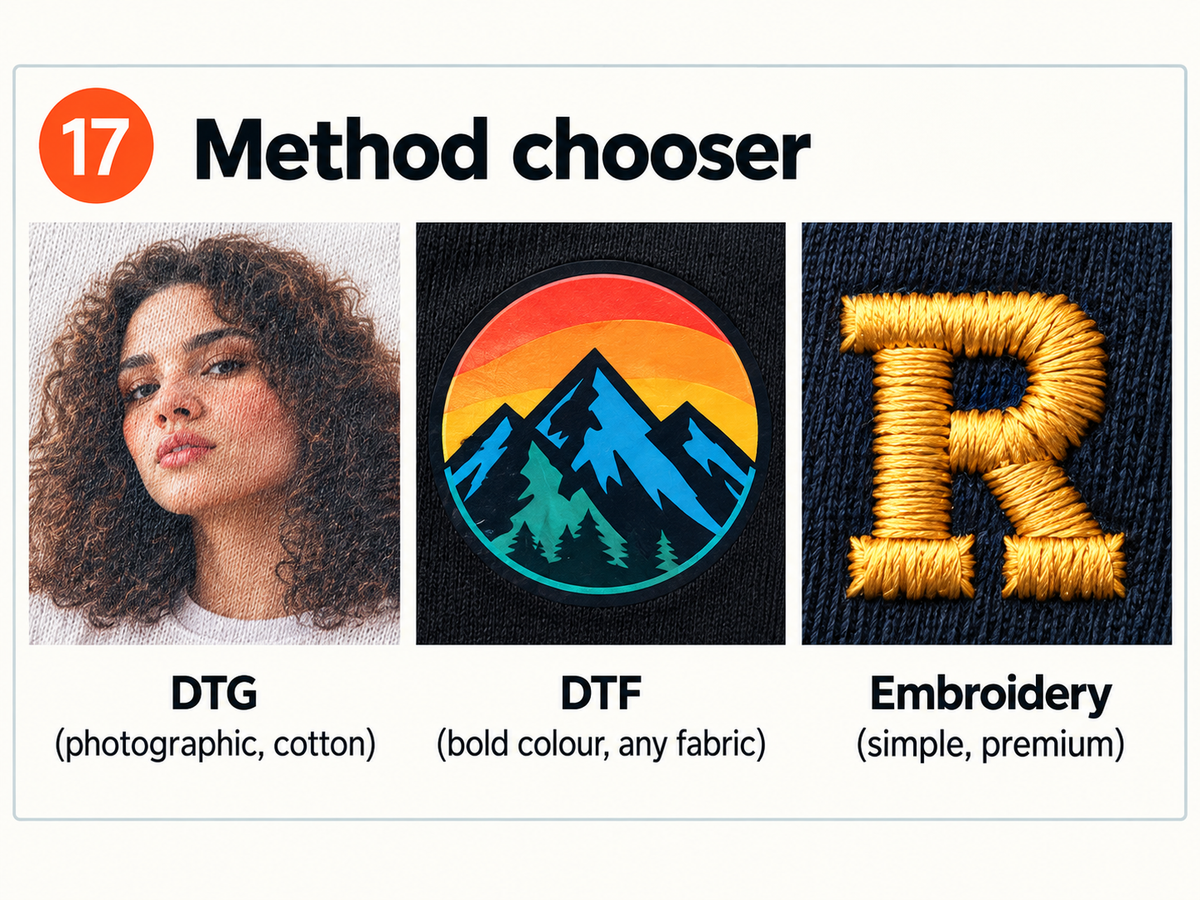
DTF prints your design onto film and bonds it to the surface of the fabric, which makes it the most flexible option we offer. It holds bold, saturated colour on almost anything: cotton, polyester, blends, tri-blends, canvas, denim, even bags and caps. Because it sits on the surface rather than soaking in, colour on a black garment is as punchy as on white, and durability is excellent at 50 or more washes. The trade-offs are a slightly perceptible film to the touch, which softens after a few washes without ever quite disappearing, and a dislike of extreme stretch: anything above about 20% elastane will eventually micro-crack at the edges. Design accordingly with clean shapes and defined outlines, and keep critical detail away from the very edge of the artwork.
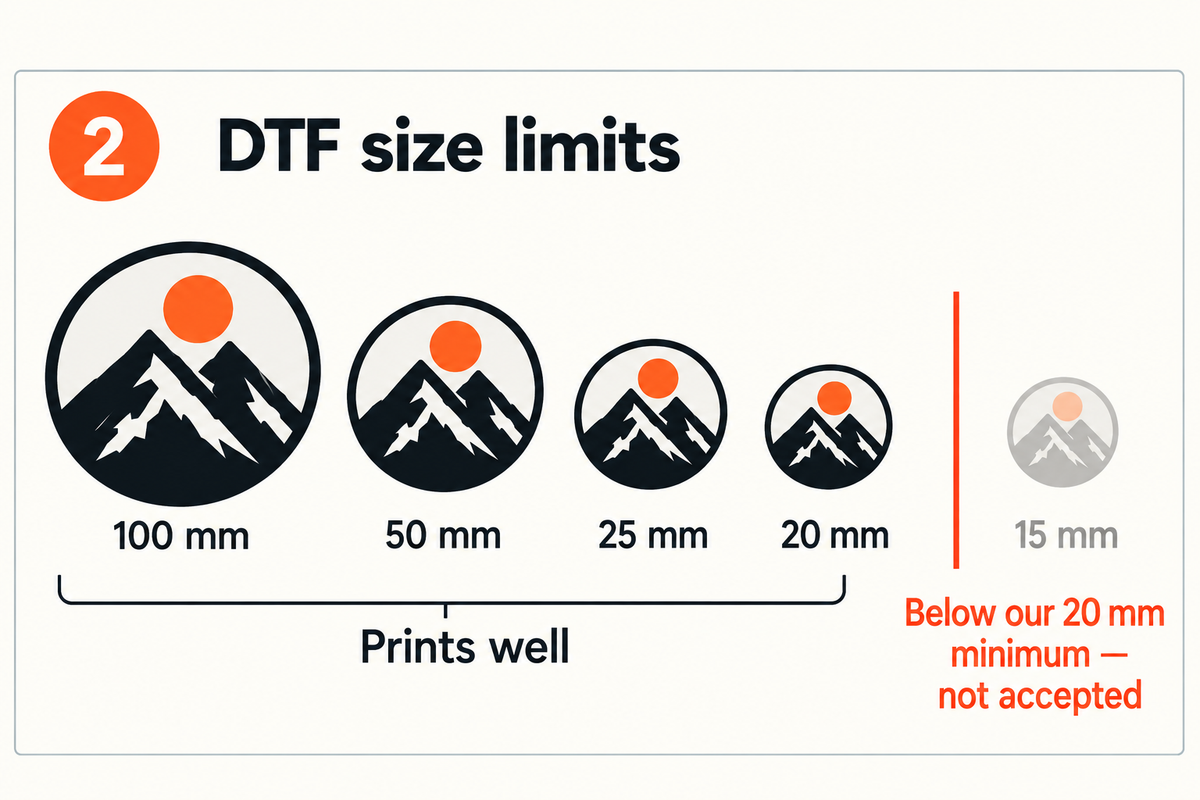
If you are ordering DTF transfers by the sheet rather than on a garment, the printable sheet is 56 x 100 cm with a 5 mm margin, giving 55 x 99 cm of usable space. Individual designs need to be at least 20 x 20 mm, and we leave a 5 mm gap between them so they can be cut apart.
Designing for DTG
DTG sprays water-based ink directly into the fibres, so the print becomes part of the garment: no hand feel at all, fully breathable, and the best choice for photographic images, soft tonal detail and fine linework. The catch is that the ink needs natural fibres to absorb into, so DTG wants 100% cotton or a high-cotton blend, and it is the wrong tool for performance polyester, nylon or anything coated.
Two quirks worth designing around. Neon and fluorescent colours sit outside what any textile ink can reproduce, so pull the saturation of electric brights back by 10 to 20 points rather than being surprised by a duller result. And on a dark garment, remember the white underbase: a design whose darkest tones match the shirt will look better with those areas removed entirely, letting the fabric itself be the black, than with black ink printed over an underbase on black cloth.
Designing for embroidery
Embroidery is not printing, and treating it as printing is where most embroidery disappointment comes from. Your artwork is not reproduced; it is rebuilt as a path of needle penetrations in solid thread. Thread has physical width, it cannot blend with its neighbour, and it cannot be partly there. The practical rules that follow:
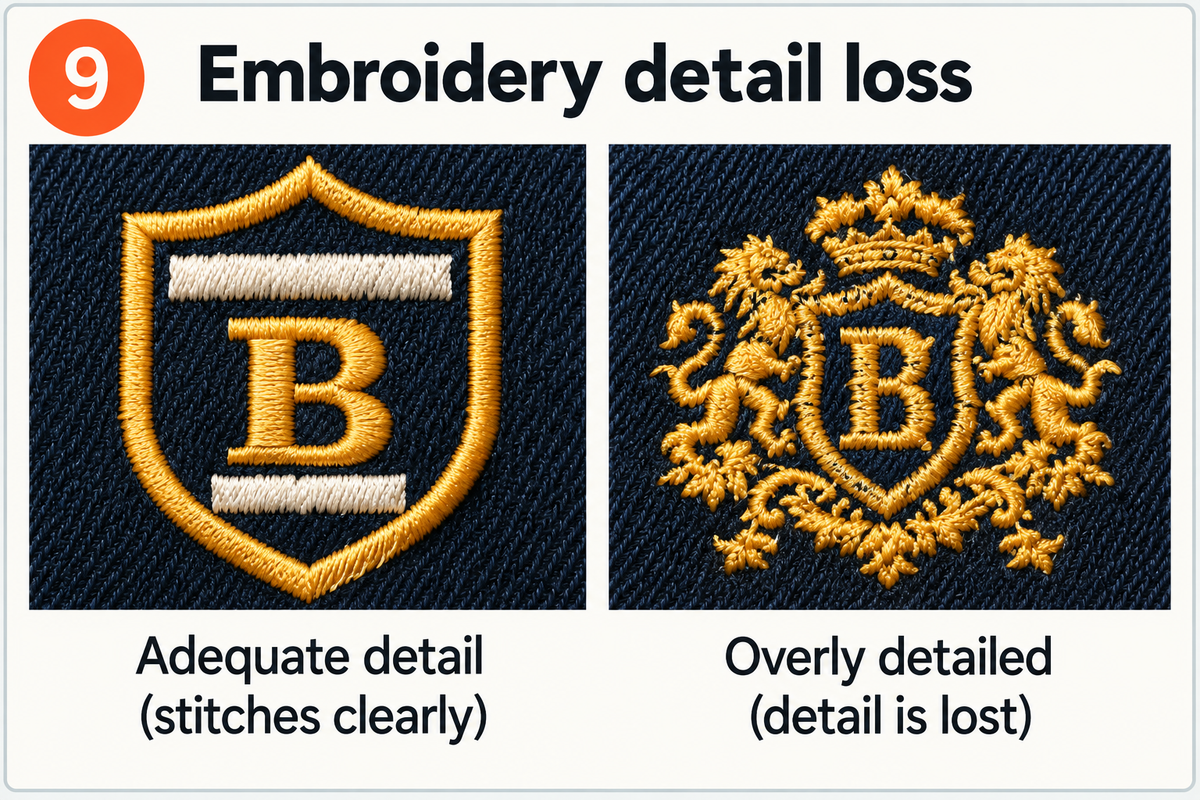
- No gradients, no soft shading, no photographic blends. Reduce every graded area to flat blocks of solid colour with a clean boundary between them. Semi-transparency is simply thresholded away: a stitch is either there or it isn't.
- Think in terms of a fat marker pen. If a detail would disappear when drawn with one, it will disappear in thread. Strip out engraved linework, hairline keylines and tiny ornament rather than hoping.
- Keep the colour count low. We stock a fixed chart of thread colours, and the editor will map your artwork onto the nearest available ones; a design resolved into four to six solid colours stitches cleanly and reads at a distance, where twelve will look busy and cost more in machine time.
- Avoid large areas of open negative space inside a shape. Thread tension pulls at unsupported fabric, so a filled background usually finishes better than an outline floating on its own.
- Expect to pick a size and stay with it. Stitch spacing is calculated for a specific physical size, so scaling a design later is a rebuild rather than a resize.
When you choose an embroidery area in the editor, you will be asked to confirm a thread separation before you can continue. That step is not a formality: it shows you exactly which thread colours your artwork will become, lets you merge or disable any you don't want, and is the last point at which a problem is cheap to fix. Behind the scenes a digitiser then converts the approved artwork into a stitch file by hand, which is why embroidery carries a one-off setup step the first time a design is run and why a first-time embroidery order is worth sampling before you commit to a quantity.
Check the proof, then order one
Every order generates a mockup and a print-ready file at the exact pixel dimensions the press will use. Both are on the order's detail page, so you can zoom in and inspect what will actually print, which is the fastest way to catch a stray white box or a soft edge. And for anything brand-critical, order a sample first: colours behave differently on cotton than on a backlit screen, and a single sample is the cheapest quality control you will ever buy.
Full file requirements live in our Artwork Policy, and if a file has you stuck, send it over via the contact page and we'll tell you exactly what to change.